Using the editor
GeologyRocks uses the TinyMCE Javascript editor to help you edit and submit content. this editor is very much like word: you can select text and click a button to make the text bold, italic or a link. The editor appears at the top of the submission textarea. The buttons are described below and the function can also be determined by placing your cursor over the button.
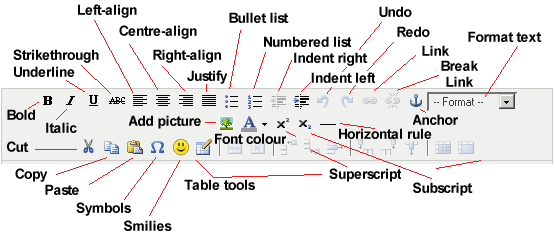
Most buttons are pretty self-explanitory. However, a few are slightly more complicated.
Add Image
To add an image to your content, click the "Add Picture" button. This will open a new pop-up window.
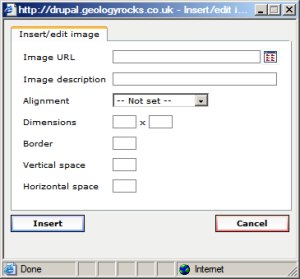
Click the "Browse" button.
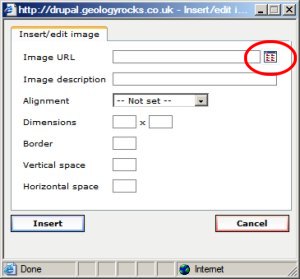
This will open a new window which is your personal file browser on GeologyRocks.
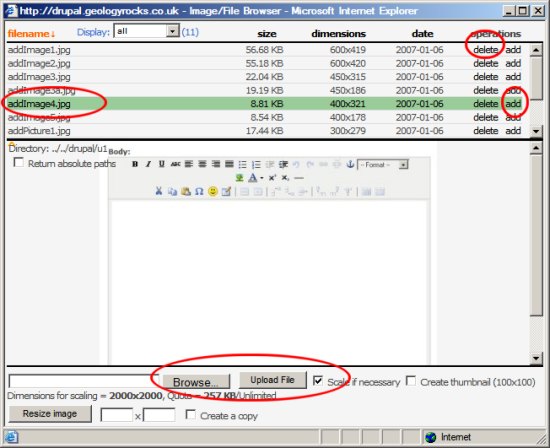
Using this window you can upload new images, delete images and preview images. However, to add an image to your content, click the "add" link. This will place the correct URL in the previous "Add Image" window.
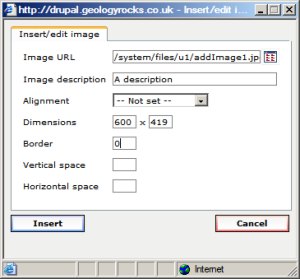
Click "Insert" and the image will appear in your content.
Forums Latest
Latest image